

A practical guide to restoring your smart home system quickly
Smart homes are designed to make life easier, but when your devices stop responding, the experience can quickly become frustrating. If your lights won’t turn on or your voice assistant ignores commands, the issue often lies with your smart home hub. Fortunately, resetting it is usually quick and straightforward.
This guide explains how to reset your smart home hub efficiently and safely, helping you restore your system without unnecessary hassle.
Why Your Smart Home Hub May Need a Reset
A smart home hub acts as the central controller for connected devices such as lights, thermostats, locks, and cameras. Like any technology, it can occasionally experience temporary issues.
Common signs that your hub may need a reset include:
- Multiple devices becoming unresponsive
- Voice commands not working
- Automations failing to trigger
- The hub appearing offline in its companion app
In many cases, these issues are caused by minor software glitches or network interruptions that can be resolved with a simple reset.
The Quick Fix: Performing a Soft Reset
A soft reset, also known as a reboot, is the fastest and safest way to restore your hub’s functionality.
Steps to follow:
- Unplug the smart home hub from its power source
- Wait for approximately 30 seconds
- Plug the hub back in
- Allow 1–3 minutes for the system to reconnect
This process clears temporary memory and re-establishes connections, resolving most everyday issues without affecting your settings or devices.
When to Consider a Factory Reset
If a soft reset does not resolve the issue, a factory reset may be necessary. This is a more advanced step that restores the hub to its original state.
What a factory reset does:
- Removes all connected devices
- Deletes saved automations and configurations
- Resets the system to default settings
Situations where a factory reset is useful:
- The hub fails to connect to the network
- Devices cannot be paired
- Persistent software problems remain after rebooting
It is important to note that after a factory reset, you will need to set up your devices again from scratch.
Reset Instructions for Popular Smart Home Hubs
Different brands have slightly different reset procedures. Below are general guidelines for widely used systems:
- Amazon Echo (Alexa hub)
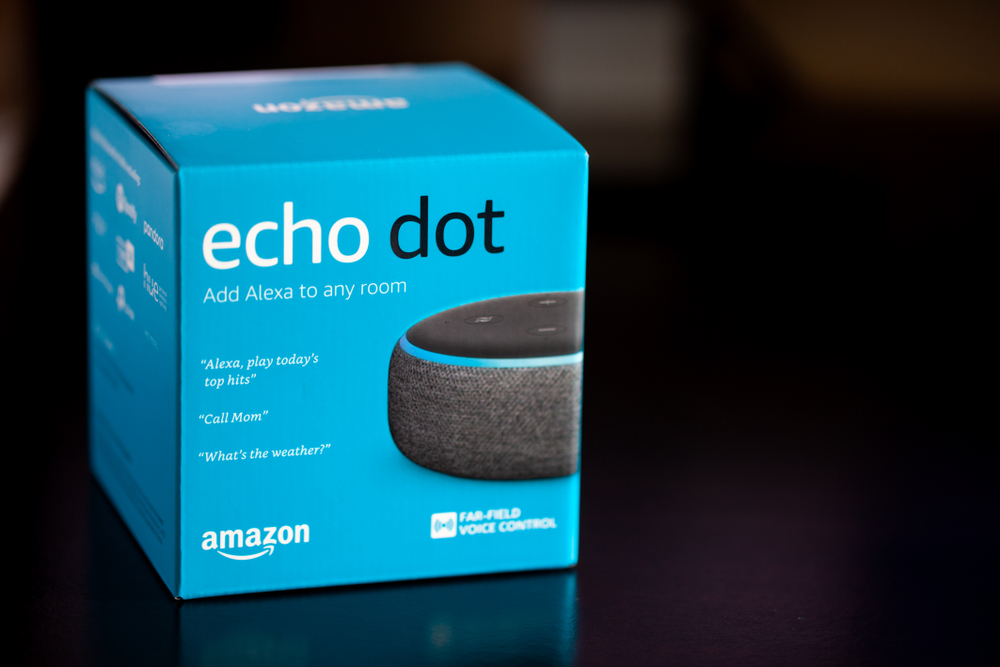
Press and hold the mute button while plugging in the device until the indicator light changes
- Google Nest Hub
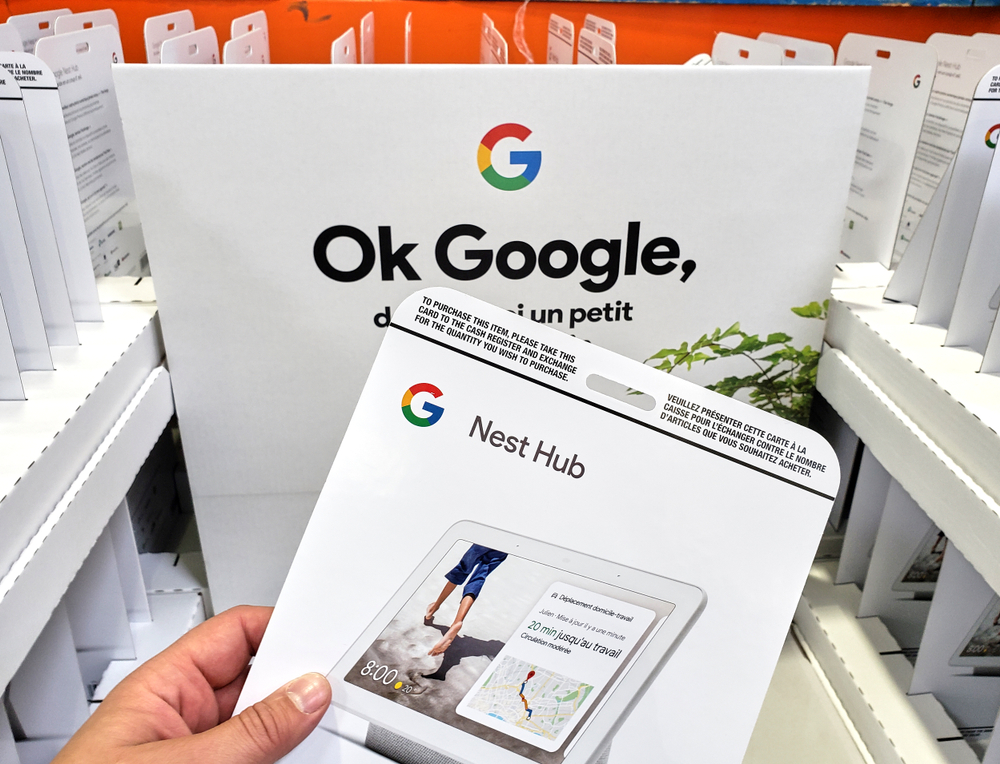
Press and hold the volume buttons simultaneously for about 15 seconds
- Apple HomePod (HomeKit hub)
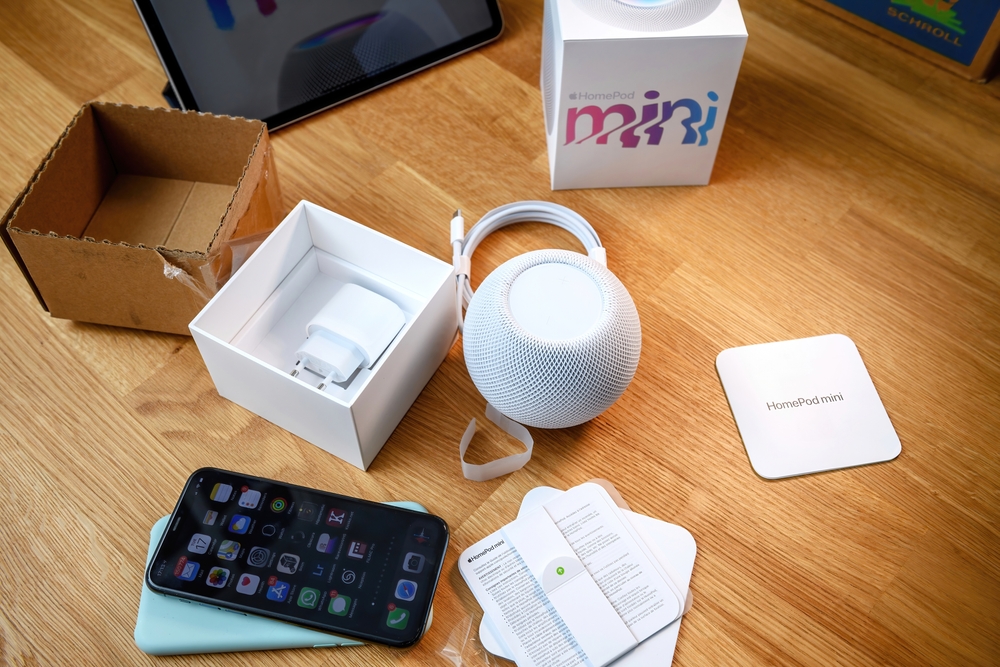
Press and hold the top surface until the light turns red
- Samsung SmartThings Hub
Use a pin to press and hold the reset button for around 10 seconds
After resetting, use the corresponding mobile app to reconnect your devices and restore your setup.
Common Mistakes to Avoid
Resetting your hub is effective, but it should be done thoughtfully. Avoid these common errors:
- Resetting the hub without checking your internet connection
- Performing a factory reset unnecessarily
- Resetting individual devices before troubleshooting the hub
- Not allowing enough time for the hub to reconnect
Taking a moment to diagnose the issue can save significant time and effort.
The Evolving Smart Home Experience
Modern smart home systems are becoming more resilient. With newer standards such as Matter and improved ecosystem integrations, devices are better equipped to recover from disruptions with minimal intervention.
However, knowing how to reset your hub remains an essential skill for maintaining a reliable smart home.
Conclusion
Resetting your smart home hub is often the simplest solution to common connectivity and performance issues. In most cases, a quick reboot is all that is required to restore normal operation.
By understanding when and how to reset your hub, you can keep your smart home running smoothly and avoid unnecessary complications.